X-keys®


Search piengineering.com:
CourtSmart
X-keys® Foot Pedal (3 switches)
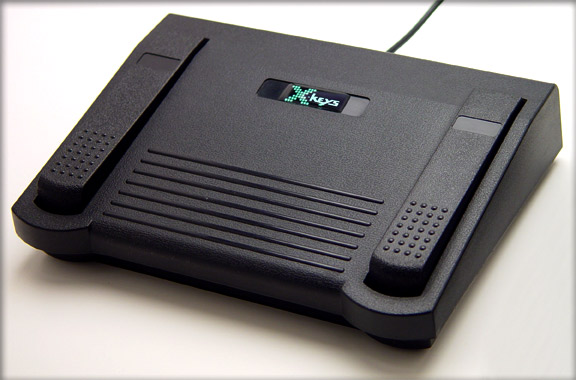
- X-keys footpedal enables you to control playback when using CourtSmart software
- Perfect for capturing and producing an accurate records
- The footpedal is "hands free," which allows you to have continuous usage of your hands to note, render, and reproduce text
- Rugged and reliable input that offers features designed to simplify your document processing
- Empowers the play, pause, and stop functions
If you are having problems using CourtSmart software with our X-keys USB footpedal; the device might be in Memory Resident Mode. You will need to change this device back to SPLAT mode. This will allow the footpedal to successfully communicate with the software you intend to use it with. In order to change this device to SPLAT mode you will need access to a windows based computer.
The following steps will show you how to convert your X-key into SPLAT mode:
1. Download and install the X-keys 4004 driver from the following link: http://xkeys.com/download/TechSupport/Xkeys4004.zip
2. Once this software is installed, plug the X-key in. You will also need to put the X-keys programming switch into the programming position. The programming switch is a slide switch on the circuit board under the center pedal. Carefully pry the center pedal up until you can see the circuit board. The switch is to the left of green and red LED indicator lights.(Click on the following link for a picture and more details for the programming switch: http://www.piengineering.com/support/progswi.php)
3. You should get a "New Hardware Wizard" window that looks similar to this:
Select "Install from a list or specific location (Advanced)".
4. Uncheck the removable media check box and check the "Include this location" box like the picture below and click on "Browse".
Once you have clicked on "Browse" navigate to :/WINDOWS/system32 (The location of this file may vary depending on your operating system. However, it will always have the file extension of /WINDOWS/system32)
Before clicking on "Next", be sure your screen looks like this:
5. If you get a screen that asks you to "Insert X-keys Installation Diskette" click on "Ok" and a new window will pop up. Browse to the following path: Local Disk:/WINDOWS/system32/drivers. Before clicking on "OK", be sure your screen looks similar to this:
6. Now it is time to download and install X-keys Splat Converter from the following link: http://xkeys.com/download/TechSupport/Splat_Converter.zip. Once the X-keys Splat Converter is installed please restart your computer.
7. Once the computer has been restarted run the Splat Converter program and click on the "Get Mode" button. Also, please put the X-keys programming switch into the programming position. The programming switch is a slide switch on the circuit board under the center pedal. Carefully pry the center pedal up until you can see the circuit board. The switch is to the left of green and red LED indicator lights.(Click on the following link for a picture and more details for the programming programming switch: http://www.piengineering.com/support/progswi.php)
The "Splat" button should appear like the picture below:
Click on the "Splat" button and you should get a "New Hardware Found" indicator.
8. Once the "New Hardware Found" indicator is gone please test the X-keys footpedal with the CourtSmart software.
If you have any more questions, please feel free to contact technical support: [email protected]
Technical support for the CourtSmart software please contact CourtSmart: http://www.courtsmart.com/
X-keys, Y-mouse, RailDriver and The No Slogan Company are Trademarks of P.I. Engineering, Inc.
Copyright © 2007 P.I. Engineering, Inc. All Rights Reserved.
101 Innovation Parkway
Williamston, MI U.S.A. 48895
1-517-655-5523
FAX: 1-517-655-4926
www.piengineering.com | www.xkeys.com | www.ymouse.com | www.raildriver.com
Visit Our New Divisions: