Free Resources



Recording Actions in Photoshop 6
This tutorial follows the steps we took to set up shortcut keys for our RailDriver Cyclopedia Scanning Project, but the same steps may be used to record actions and make keyboard shortcuts for many tasks in Photoshop 6. In Photoshop 7 we take this a step further by adding tool presets. Our tutorial for Photoshop 7 is here: actions7.php.
The Actions
We created this set of actions to apply consistent, specific filters to “separate areas” of each scanned page in our 1150 page RailDriver Cyclopedias:
- Action 1: Photo Blur, applies a 2.0 pixel Gaussian blur
- Action 2: Text/Line Blur, applies a 1.5 pixel Gaussian blur
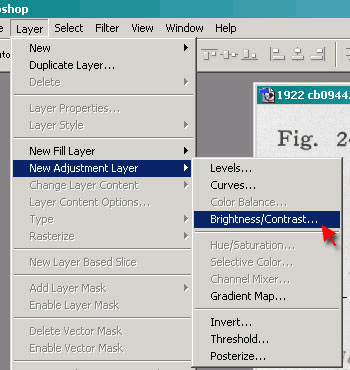
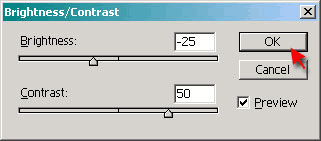
- Action 3: Brt/Cont Layer, creates a new adjustment layer with our custom settings
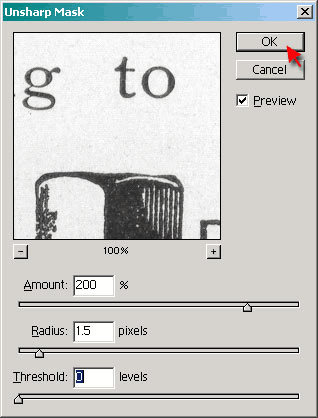
- Action 4: Sharpen, applies the Unsharp Mask filter with our custom settings
Each of these actions is assigned to a shortcut key, which we program into the X-keys Professional Keyboard for instant access. See the our Professional X-keys for Photoshop 7.
Step 1
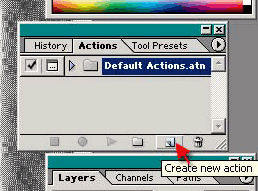
Open an image file in Adobe PhotoShop and select the Actions tab in the History Palette.
Click on the Create New Action icon.
Step 2
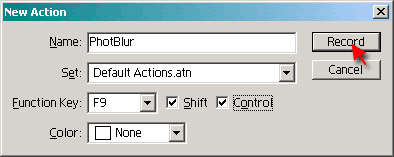
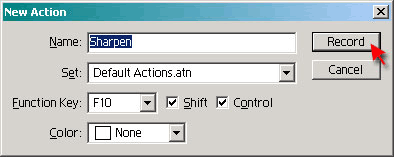
Name the action and select a function key and Shift, Control, or both to create a keyboard shortcut for the action.
Click on the Record button to begin recording the action.
Step 3
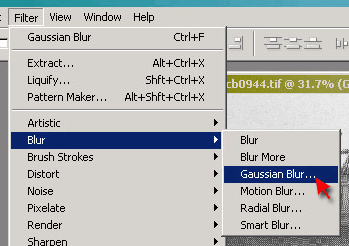
For the first action, go to the Filter menu and select Blur, then Gaussian Blur
Step 4
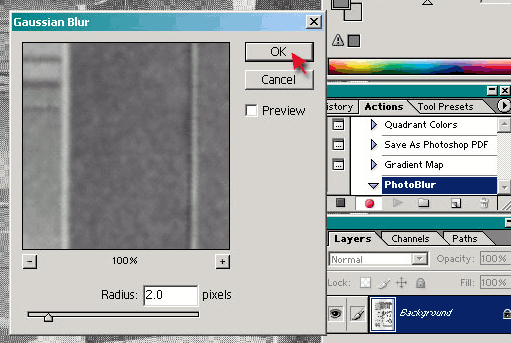
Change the setting to 2.0 pixels and click OK.
Note that nothing is recorded on the actions menu until the filter is applied.
Editor's note: This is a good illustration of a point where the X-keys can do a function that PhotoShop actions don't support. Recording the keystrokes "Alt + T, B, Right Arrow, G" on an X-keys will open the Gaussian Blur window and leave it ready for user manipulation before application of the filter.
Step 5
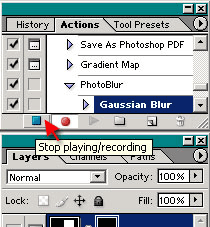
After it is applied, the name of the filter appears as a step under the action. If more steps are performed, they also appear as they are entered.
Click the Stop Icon to end recording of the action.
Step 6
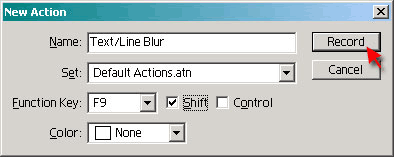
Repeat steps 2 through 5 with a setting of 1.5 for the Text/Line Blur action
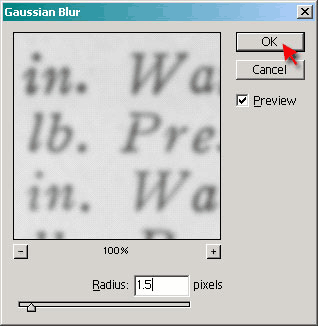
Step 7
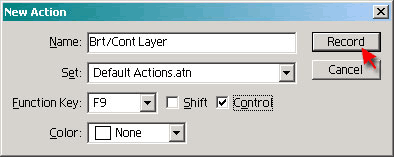
Repeat steps 2 through 5 creating a new adjustment layer and setting Brightness and Contrast values for the Brt/Cont Layer action
Step 8
Repeat steps 2 through 5 selecting the Unsharp Mask filter and setting values for the Sharpen action.
Playing Actions
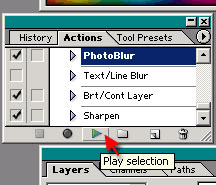
The actions may be played back by selecting them and clicking on the Play Icon or by the keyboard shortcut assigned in step 2.
Button Mode
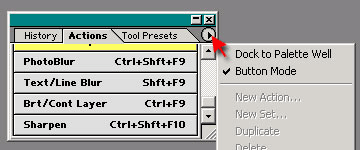
Selecting Button Mode displays the name of each action with its keyboard shortcut. Clicking the button will also play the action.
X-keys
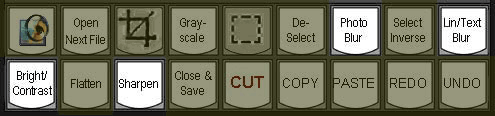
Program the keyboard shortcuts into the X-keys to play the actions with the tap of a key.
X-keys Professional Keyboards can play any PhotoShop Action via keyboard shortcut, and can record and play many operations that aren't supported by Actions. As noted above, any of the adjustment windows can be opened with keyboard shortcuts allowing the user to make adjustments before the application of filters or masks.
- Go to PhotoShop and Dreamweaver Shortcuts with X-keys
- Go to Creating Tool Presets and Actions in Photoshop 7
- Learn more about the X-keys Professional for Photoshop 7 on the P.I. Engineering web site
- Learn more about X-keys on the P.I. Engineering web site
- Learn more about RailDriver Cyclopedias on the RailDriver web site
Accessories | Developer´s Corner | Resources | Support
Shopping Cart | Checkout | Privacy Policy | Site Map
X-keys, Y-mouse, RailDriver and The No Slogan Company are Trademarks of P.I. Engineering, Inc.
Copyright © 2006 P.I. Engineering, Inc. All Rights Reserved.
101 Innovation Parkway
Williamston, MI U.S.A. 48895
1-517-655-5523
FAX: 1-517-655-4926
www.piengineering.com | www.xkeys.com | www.ymouse.com | www.raildriver.com
Visit Our New Divisions: