Free Resources



Audio Engineering Resources
Their ability to replace complex and repetitive tasks with a single keystroke coupled with instant and intuitive reprogramming capability makes the X-keys an invaluable tool for the audio engineer.
If you have an X-keys layout for your audio software to share with us, please contact us: [email protected]
Nuendo
Chuck Moore of Firehouse Sound shows us how to harness the Power of Nuendo with the X-keys Controller. —— Thanks Chuck.
“I programmed the set marker keys to the second layer under their respective go to key, so you can set the marker by pushing the shift key and the key for the marker you wish to set. I used two horizontal double keys for the stop and play buttons for the transport . I also set the nudge command in Nuendo to the “shift ,” and “shift .” keys so that you can use the second layer for nudging a region with the shift key, and nudging the start or stop points of a region with the Ctrl or Alt keys respectively with the same nudge key.”
Get his Nuendo layout as a Word document: nuendo.doc or a PDF nuendo.pdf.
MusicMatch Transport Controls
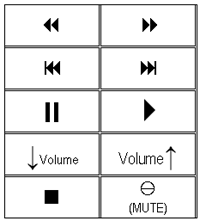
This step by step tutorial shows how to configure the X-keys to mimic a CD control panel for use with MusicMatch Jukebox software. If you wish to download the following tutorial click on the filename musicmatchplayer.pdf.
- Ingredients:
- 1 - X-keys 20 key (PS/2 or USB)
- 1 - X-keys Accessory Horizontal keys (10 pack)
- 1 -MusicMatch Jukebox downloadable at: www.musicmatch.com
- Recipe:
- Download and install MusicMatch Jukebox.
- Install your X-keys following the instructions in the manual.
- Your X-keys comes preprogrammed with the letters a - t assigned to the corresponding keys. To clear this programming put the X-keys in programming mode, select a key and enter the sequence ESC, BACKSPACE, ESC, ESC, ESC (without the commas). After a three second pause the red indicator should light indicating the operation was successful.
- Program the single keys down the first and fourth columns of the X-keys following the table below. Do not program anything on the second and third columns.
- Print and cut out the legend pictured above
- Remove the clear key caps from your horizontal keys and install the legends
- Use the key puller to remove all 20 keys from the X-keys and replace them with the horizontal keys
| COLUMN 1 | COL 2 | COL 3 | COLUMN 4 |
| Seek Backward = ALT+SHIFT+LEFT ARROW | (blank) | (blank) | Seek Forward = ALT+SHIFT+RIGHT ARROW |
| Previous Track = ALT+LEFT ARROW | (blank) | (blank) | Next Track = ALT+ RIGHT ARROW |
| Pause = PAUSE/BREAK | (blank) | (blank) | Play = CTRL+P |
| Decrease Volume = ALT+ DOWN ARROW | (blank) | (blank) | Increase Volume = ALT+UP ARROW |
| Stop = CTRL+S | (blank) | (blank) | Mute = CTRL+M |
Accessories | Developer´s Corner | Resources | Support
Shopping Cart | Checkout | Privacy Policy | Site Map
X-keys, Y-mouse, RailDriver and The No Slogan Company are Trademarks of P.I. Engineering, Inc.
Copyright © 2006 P.I. Engineering, Inc. All Rights Reserved.
101 Innovation Parkway
Williamston, MI U.S.A. 48895
1-517-655-5523
FAX: 1-517-655-4926
www.piengineering.com | www.xkeys.com | www.ymouse.com | www.raildriver.com
Visit Our New Divisions: