Free Resources



Previous Page
Dreamweaver -- Accurate Positioning with the X-keys
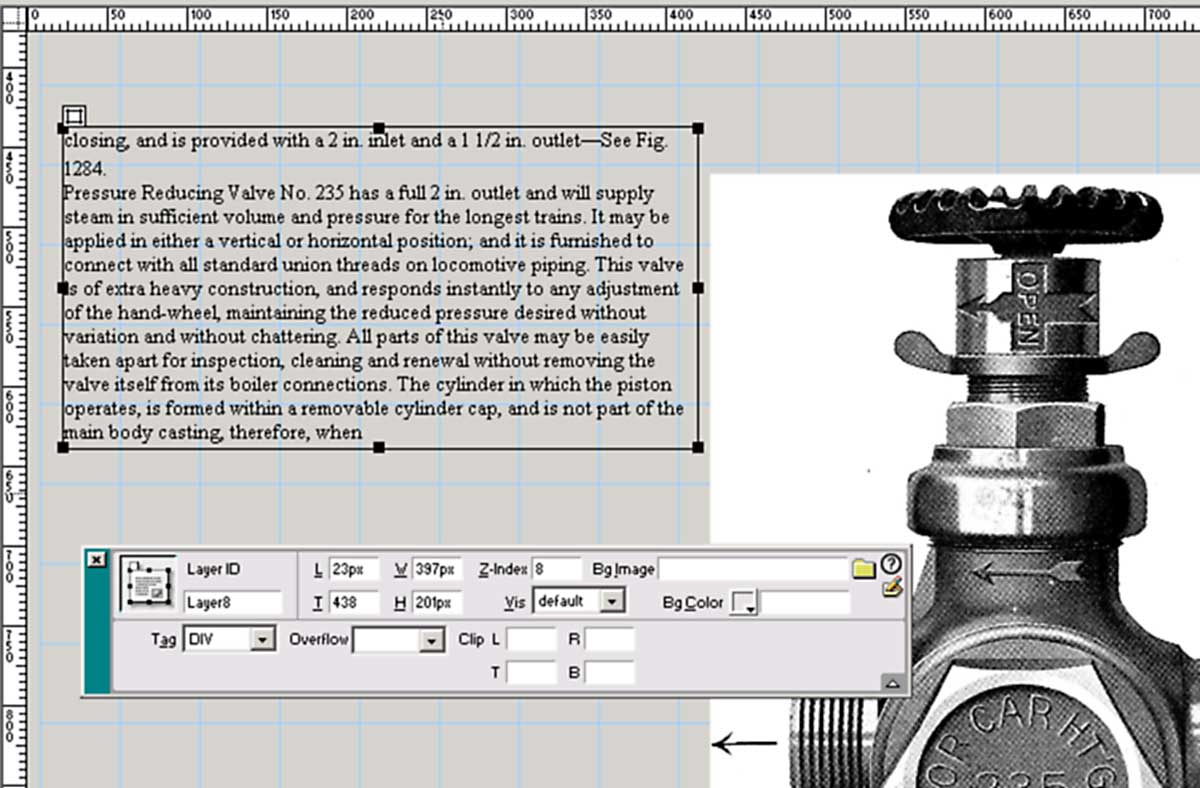
After converting to layers in Dreamweaver the X-keys automates entering the same coordinates for the top, left margin, and column width to exactly place each column on each page.
The previous steps, scanning, cropping, and especially OCR, have given each page unique positioning of titles, text, page numbers, and other references. The following steps use Dreamweaver to organize the pages to a consistent digital format. Also in this stage, the operator compares the original book, page by page, to our HTML pages, and corrects any differences found. While a great number of pages in the Cyclopedia combine text, drawings, and photographs in unique relationships, we were able to establish some standards for the majority of pages, and having these programmed into their own keys saved countless keystrokes and time. After some experimentation, we settled on the following:
- Page titles are centered and 23 pixels from the top
- Left text columns are indented 23 pixels, 101 pixels from the top, and 397 pixels wide.
- Right text columns are indented 438 pixels, 101 pixels from the top, and 397 pixels wide.
- Even Page numbers are 23 pix from the top and 23 pix indented
- Odd Page numbers are 23 pix from the top and 820 pix indented
- The following steps were performed on each page in Dreamweaver:
- Open file
- Convert table to layers
- Set position of each layer
- Edit text as needed
- Covert layers to table
- Save and exit
Since Dreamweaver launches a unique event each time it opens a file, we leave the directory open and use the X-keys to step to the next file in the list, and open it.
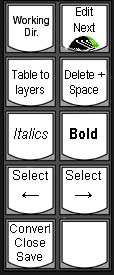
- The keys programmed for Dreamweaver:
- Working Dir. -- This key is a shortcut to the directory where our working files are stored (WinKey, R, C:\raildriver\cyclopedias\1922locomotive), and saves our operator from having to type the complete path or navigate a maze via mouse to get to the directory. The key is reprogrammed for the individual project.
- Edit Next -- Programming the key to move down one file, open the File Menu, choose the Edit option, and begin (Down Arrow, Alt + F, E, Enter) was easy. The hard part was setting Dreamweaver as the Windows default program for Editing HTM files. Fortunately, we only have to do this once. Click here for detailed instructions: Changing Windows Default for file types
- Tables to Layers -- We use Dreamweaver's shortcut (Ctrl + F6) plus an Enter key to perform this step. FineReader saves HTML files in the table format and using layers makes positioning the sections of a complex layout possible.
- Delete + Space -- This key corrects Dreamweaver's annoying habit of eating adjacent spaces when words are deleted.
- Italics and Bold -- These keys use the conventional Windows shortcuts (Ctrl + I) (Ctrl + B) to alter selected text. OCR programs have a hard time distinguishing bold and italics from standard text, making it necessary to apply the formatting here.
- Select Left and Select Right -- These keys use the conventional Windows shortcuts (Ctrl + Left Arrow) (Ctrl + Right Arrow) to select complete words on either side of the cursor.
- Convert Close & Save -- Chaining Dreamweaver's shortcuts (Ctrl + Shift + F6, Enter, Ctrl + F4, Enter) completes the last step and saves the page with one keystroke.
- Blank key -- What shall we do with it? We use it as a dynamic memory location. When a repetitive task rears its ugly head, we memorize the strokes required on the fly and keep them here.
Our goal here is to allow the operator to keep one hand on the mouse, while the other hand handles the data entry. The operator clicks on the layer to be positioned and clicks on the Left position field. If the layer requires one of the standard positions (Title, Page #, or Column), hitting the appropriate key, will pop the layer into position, and the operator can move quickly on. If the layer requires a unique position, this can be done with the mouse or entry from the key pad.
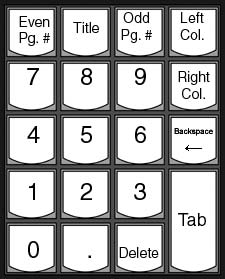
- The X-keys Dreamweaver Numbers Pad:
- Even Pg. # (23, Tab, 23, Tab)sets left and top position
- Title (23, Tab) sets top position
- Odd Pg. # (820, Tab, 23, Tab) sets left and top position
- Left Col. (23, Tab, 101, Tab, 397, Tab) sets left position, top position, and column width
- Right Col. (438, Tab, 101, Tab, 397, Tab) sets left position, top position, and column width
The number keys are self explanatory, Tab was preferable to Enter on this number pad, since Dreamweaver uses Tab to move between fields. Backspace and Delete are useful both in setting position and in editing the text.
This is the last step of processing before the HTML pages are bundled with our ReadBook Navigation frame, and our ScalePrint utility on the finished RailDriver Cyclopedia CD. The operator compares the original Cyclopedia to the HTML files page by page, correcting differences.
Accessories | Developer´s Corner | Resources | Support
Shopping Cart | Checkout | Privacy Policy | Site Map
X-keys, Y-mouse, RailDriver and The No Slogan Company are Trademarks of P.I. Engineering, Inc.
Copyright © 2006 P.I. Engineering, Inc. All Rights Reserved.
101 Innovation Parkway
Williamston, MI U.S.A. 48895
1-517-655-5523
FAX: 1-517-655-4926
www.piengineering.com | www.xkeys.com | www.ymouse.com | www.raildriver.com
Visit Our New Divisions: