Free Resources



Programming Special Character Macros
 Programming
a key with X-keys Macro Works is the most reliable way we have found for inserting special
characters or symbols into a wide range of applications, and it has the added benefit of preserving
the appearance of the character.
Programming
a key with X-keys Macro Works is the most reliable way we have found for inserting special
characters or symbols into a wide range of applications, and it has the added benefit of preserving
the appearance of the character.
For more information on the X-keys we have set up for inserting characters, please go here: X-keys & Special Characters.
-
Click on any of the items below to jump to it.
- Create a Windows shortcut to launch Character Map
- Find the Unicode hexadecimal value for a character
- Create a macro in X-keys Macro Maker
- Edit a Macro in X-keys Macro Maker
- Save and assign a profile to your X-keys
- Questions & Notes
Step 1: Creating a Shortcut for Character Map
From Windows Start menu, select the Programs folder, Accessories, System Tools, and then Right Click on Character Map. Select Properties from the menu and then click on the Shortcut Tab.
Click in the field for Shortcut Key. For our example we used Ctrl+Alt+Num 8 by holding down the Ctrl and Alt key and typing the number 8 on the numbers pad (NumLock must be on). We chose this because it is an obscure combination which won't conflict with any other keyboard shortcuts that we may have programmed for other uses.
Click the OK button to save the shortcut.
Test it. Open any Windows application (Notepad or Word for example). Invoke your shortcut (Ctrl+Alt+Num 8). Character map will launch. If it doesn't you may have a conflicting shortcut, so open Character Map's Properties window and assign a different shortcut.
Finding the Unicode hexadecimal value for a character
 Open
Character Map again.
Open
Character Map again.
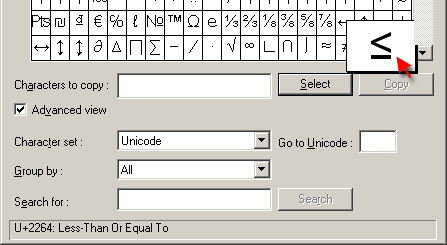
Scroll down the Arial font character table and select the Less Than Or Equal To character. Note that the message line displays the hexadecimal code for this character (2264).
Select the Advanced View check box. A “Go to Unicode” feature is now available. We will be using this in the next step. Leave the Advanced View open and exit Character Map.
Create a Macro in X-keys Macro Maker
Launch X-keys Macro Maker (flip the programming switch on your X-keys up, or use the icon on your desktop, or follow the path Programs - X-keys - Macro Works - Macro Maker from Windows Start menu).
Right click on a key and select “Create/Edit Macro”.
Type a name for the macro in the Caption field and Click the Start button.
Once you click the Start button, Macro Maker is recording everything you do on the keyboard and ignoring the mouse. If you make a mistake, just click the Stop button, and click the Start button again to start over.
We start this macro by invoking the shortcut for Character Map (Ctrl+Alt+Num 8).
When Character Map opens, use Alt+U to jump immediately to the "Go to Unicode" field. Enter the four digit hexadecimal value (2265).
We will save keystrokes by consolidating the next three steps. Press and Hold the Alt key. Press and release the S, then the C, and then the F4 key and release the Alt key.
Finish the macro by pressing the Ctrl key, pressing and releasing the V key and releasing the Ctrl key (Windows shortcut for Paste).
Click on the Stop button.
We now have the basic macro written, but need to make a few modifications before it is complete. Windows intercepts the last stroke of our shortcut for Character Map, so we need to put that back in, and we need a pause to allow Character Map to launch.
Editing a Macro in X-keys Macro Maker
In the keystroke display window of Macro Maker, select the keystroke just before the start of our insert and click the Start Insert button.
Press and release the 8 key on the numbers pad.
Click the Stop Insert button
Note that the “Num 8 [Down]” and “Num 8 [Up]” Up strokes have been added to the list.
To place a pause in the macro after Character Map launches, select the last line of our Character Map shortcut (“Left Ctrl [Up]”), and click the Insert Pause button.
Note that the default value (“0.5 [sec]”) has been added to the list.
In our tests, we have found that 0.5 seconds is not enough of a delay to enable Character Map to fully launch on our system. If the delay is too short, the macro will play the Alt+S, ALt +C, and ALt+F4 commands in your active program and try to exit the program. If you set the delay too long, you will have to wait every time you insert a character.
The delay time will vary depending on a number of factors, and you may have to adjust this value for your own system. In our tests, we found 0.85 to be a value that works reliably.
Save and Assign the Profile
Save the file.
Open Macro Maker’s File menu and select Assign to Device.
Close Macro Maker by sliding the programming switch down on the X-keys or closing the window.
When you are finished programming, using our Legend Template for MS Word is a great way to test the macros. Just click in the corresponding cell of the template table and hit the key on the X-keys.
When you are finished, the legend will be ready for printing.
Questions & Notes:
Where can I buy an X-keys for special characters?
See all of our X-keys USB devices listed here: X-keys or you can order an X-keys Stick or X-keys Desktop and see how we set them up for special characters here: X-keys & Special Characters.
I have run out of keys
Should you find that you need more characters on your X-keys, a second layer is also made available by programming one key as a Layer Shift or Layer Toggle key. Selecting the second layer in Macro Maker will allow you to program the keys.
Tell us about it
We hope this tutorial is helpful. Please contact us with any questions or comments. E-mail: [email protected]
Accessories | Developer´s Corner | Resources | Support
Shopping Cart | Checkout | Privacy Policy | Site Map
X-keys, Y-mouse, RailDriver and The No Slogan Company are Trademarks of P.I. Engineering, Inc.
Copyright © 2006 P.I. Engineering, Inc. All Rights Reserved.
101 Innovation Parkway
Williamston, MI U.S.A. 48895
1-517-655-5523
FAX: 1-517-655-4926
www.piengineering.com | www.xkeys.com | www.ymouse.com | www.raildriver.com
Visit Our New Divisions: